
Use the below calculator to calculate and visualize how to load your containers.
How to Use the Loading Calculator
If you are involved in shipping goods by container or truck, you know how important it is to optimize the space and efficiency of your loading. You want to make sure that you can fit as much cargo as possible without exceeding the weight limit or damaging the goods. You also want to save time and money by avoiding unnecessary trips or repacking.
That’s where a loading calculator comes in handy. A loading calculator is a tool that simulates placing goods inside a container or truck and determines their optimal positioning. It helps you plan your loading in advance and avoid any surprises or problems during the actual loading process.
This loading calculator offers many features and benefits that make it stand out from other similar tools. Some of them are:
- It can load more, calculate faster and is very easy to use.
- It can handle both palletized and non-palletized cargo of different shapes and sizes.
- It can render a 3D image with the optimal positioning of goods inside a container or truck.
- It can customize the position of the cargo according to your preferences and requirements.
- It can provide a report with the loading plan and summary that you can download or print.
In this article, we will show you how to use the loading calculator in a few simple steps. Follow along and you will be able to optimize your loading in no time.
Step 1: Select the type of equipment
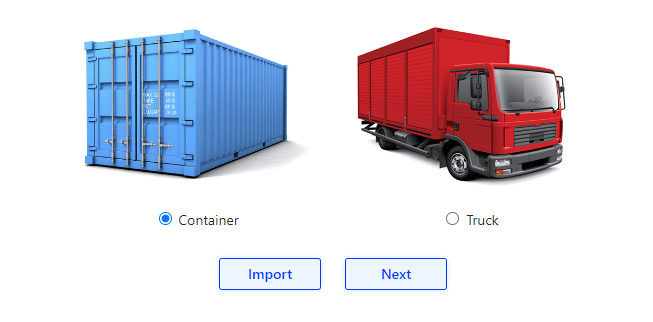
The first step is to select the type of equipment that you want to load your cargo into. You can choose between a container or a truck. Then, you need to enter the dimensions and weight limit of the equipment. You can either enter them manually or select from a list of standard sizes.
For example, if you want to load a 20-foot container, you can select it from the list and the dimensions and weight limit will be filled automatically. Alternatively, you can enter them manually as 6058 mm (length), 2438 mm (width), 2591 mm (height) and 30480 kg (weight limit).
Step 2: Select the type of cargo
The next step is to select the type of cargo that you want to load into the equipment. You can choose between palletized or non-palletized cargo. Palletized cargo means that your goods are already packed on pallets, while non-palletized cargo means that your goods are loose or in boxes.
Then, you need to enter the parameters of your cargo, such as width, height, length, weight and number of units. You can either enter them manually or select from a list of standard pallets.
For example, if you have palletized cargo, you can select a standard EUR pallet from the list and the parameters will be filled automatically. Alternatively, you can enter them manually as 1200 mm (width), 800 mm (length), 144 mm (height) and 250 kg (weight).
Step 3: Choose the loading type and packing parameters
The third step is to choose the loading type and packing parameters for your cargo. You can choose between manual or automatic loading type. Manual loading type means that you can drag and drop your cargo into the equipment and adjust their position as you like. Automatic loading type means that the tool will calculate the best position for your cargo automatically.
Then, you need to set the packing parameters for your cargo, such as orientation, stacking, spacing, etc. These parameters affect how your cargo will be arranged inside the equipment and how much space they will occupy.
For example, if you have palletized cargo, you can set the orientation to “Any”, which means that your pallets can be placed in any direction. You can also set the stacking to “Yes”, which means that your pallets can be stacked on top of each other. You can also set the spacing to “0”, which means that there will be no gap between your pallets.
Step 4: Click on the “Calculate” button and view the results
The final step is to click on the “Calculate” button and view the results of your loading. The tool will display a 3D image with the optimal positioning of your cargo inside the equipment. You can rotate, zoom or move the image to see it from different angles. You can also switch to a 2D mode to see a top view of your loading.
You can also adjust the position of your cargo if you are not satisfied with the results. You can drag and drop your cargo into different slots or change their orientation. The tool will recalculate the
Order Lumper Services Now!
Get in touch with us to arrange for your next service
Share this post with your friends
Recent Posts

- 604-757-7804
- 604-757-7804
- info@LumperHQ.com